
Purpose #
This document provides instructions on how to complete the Stone electronic verification (eVerification) checklist on the PhytClean platform.
Support Contact Details #
Contact Person: Support Team
Telephone Number: +27 (0)31 940 6795
Email: support@ecert.co.za or https://support.ecert.co.za/
Please Note: To log a new ticket you will be required to register as a user.
Pre-Requisites #
To be able to complete a DIS eVerification for Stone a user must be registered on User Authentication Service (UAS).
- If you are not already registered as a user, then go to the PhytClean website to do so: (https://phytclean.co.za). If you already have an eCert login then you will be able to get into PhytClean V2 with those details as well.
- If you have forgotten your password or want to reset it, go to PhytClean V1 click on “Forgot Password”. Follow the instructions that follow.
- Businesses must be registered on the Central Business Register (CBR). A business replaces the organisation concept in the original PhytClean. To register a business, click on the link below which details how this can be done. https://ecert.co.za/guides/register-a-business-on-the-central-business-register-cbr/
- Add users that should have access to the business on the Manage Business Users page on CBR.
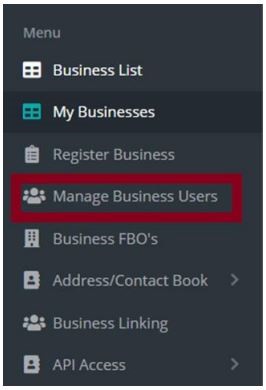
- The final pre-requisite is to link the FBO/s to the business. Refer to Linking FBO to Business (on PhytClean V1)
Navigating PhytClean #
Logging into PhytClean V1 #
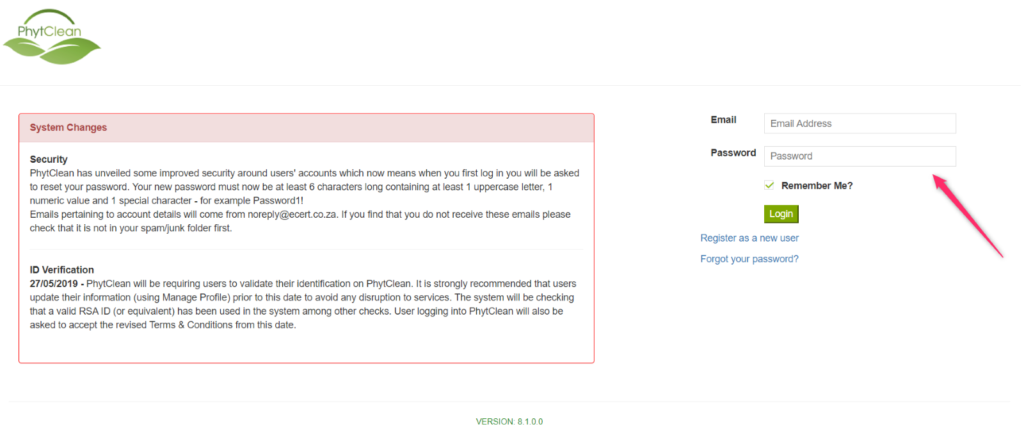
- Go to the PhytClean V1 website – https://phytclean.co.za. You will be directed to the login page. Enter your email and password and click on Login to enter the portal, as shown in Figure 1 below.
Linking User to FBO (on PhytClean V1) #
Once you are logged into PhytClean V1, you will do the following:
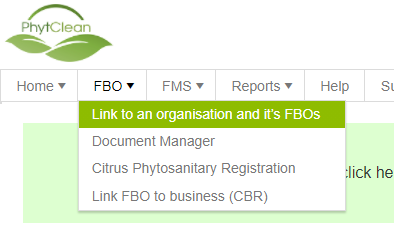
- Click on FBO
- Select Link to an organization and its FBOs, as shown in Figure 2 below
- Add the FBO code in the empty box provided and click save, as shown in Figure 3 below

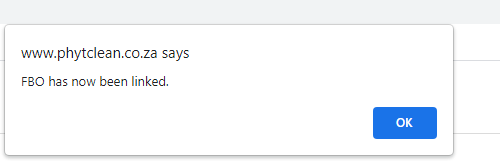
- You should see a pop-up message stating “FBO has now been linked”(if linking was successful), as shown in Figure 4 below
Linking FBO to Business (on PhytClean V1) #
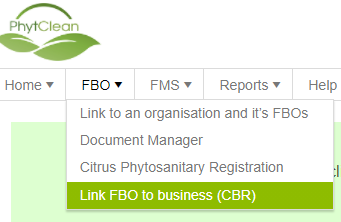
- Select FBO again and select Link FBO to business (CBR), as shown in Figure 5 below
- On the Link FBO to business page, you will see all the FBOs you are linked to. Click on Edit next to the FBO you want to stipulate the business for
- On the Business column, select the relevant business using the dropdown
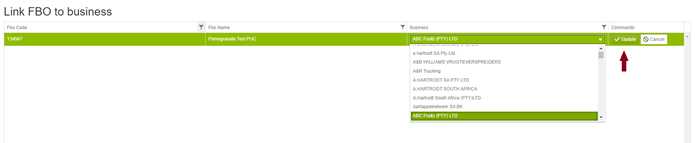
- Once the business is selected, click on Update. As shown in Figure 6 above
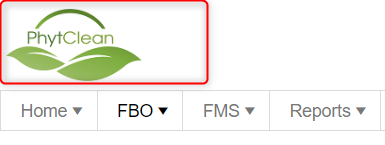
- Once FBO linking is done, click on the PhytClean Icon to go back to the home screen, as shown in Figure 7 below
How to login to PhytClean V2 #
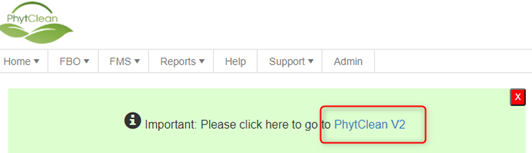
- After returning to the main screen, click on the PhytClean V2 hyperlink, as shown in Figure 8 below. You will be redirected to the PhytClean V2 platform.
Stone DIS eVerification #
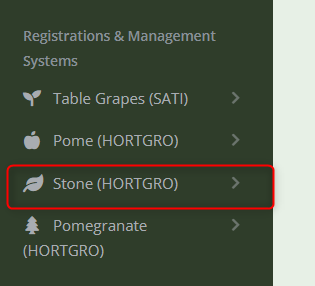
- On the PhytClean V2 homepage, expand the Stone (HORTGRO) link under Registrations and Management Systems, as shown in Figure 9 below.
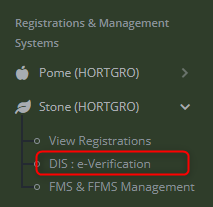
- Click on DIS eVerification, as shown in Figure 10 below.
- You will be directed to the Stone eVerification dashboard, as shown in Figure 11 below.
Please note: You will only see PUCs that you are linked to.

- To filter for the PUC, you want to request verification for, filter using the provided filter icons next to each column heading, as shown in Figure 12

Please note: You can filter using either an FBO Code or an FBO Name.
- Once the intended FBO is found, tick in the provided box next to it, as shown by the arrow in Figure 13 below.
- Then, Click on the green icon “Edit Selected FBO(s)” as shown in Figure 13 below.
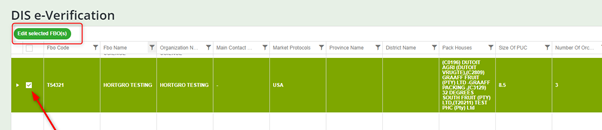
Please note: If the FBO code is not selected and you click on the “Action Selected FBO” a warning message will appear.
- Once “Edit Selected FBO(s)” is selected, a pop-up window will open, as shown in Figure 14 below
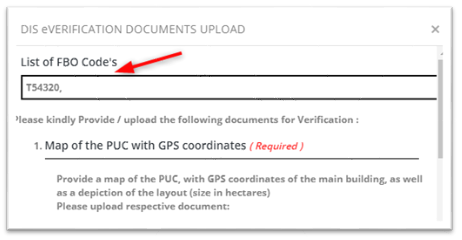
- FBO selected will show on the List of FBO Code’s grid, as shown in Figure 14 above.
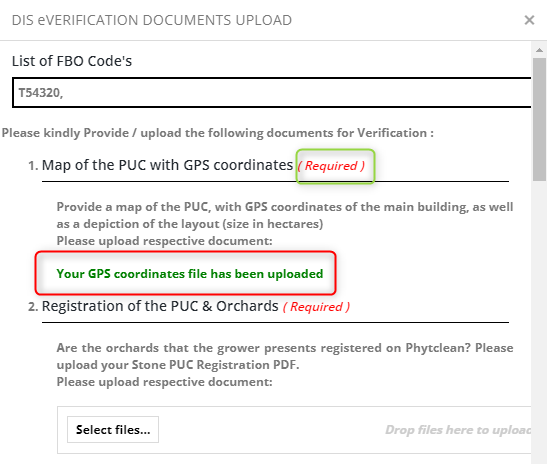
- Upload the required documentation required for verification of the selected FBO as per the provided headings
- Map of the PUC/s with GPS coordinates
- Registration of the PUC/s and Orchards
- Pheromone Trapping (Applicable to all commodities
- Orchard Sanitation (Weekly)
- Fruit Fly (Weekly) (Optional/Where applicable)
Please note:
√ The maximum file size for each upload is 5MB.
√ The file type must be PDF, Excel, or jpg only.
√ Please make sure you upload each file under the correct field
- The documents that are mandatory to upload are marked with “Required” as shown in Figure 15 below.
- When a file is successfully uploaded, you will see a success message, as shown in Figure 15 below.
- Once the upload is completed, declare the authenticity of the provided information, as shown in Figure 16 below.
- Please note: You will not be able to request DIS verification if you have not selected “I Agree”. which indicates that the information and documentation provided are true.
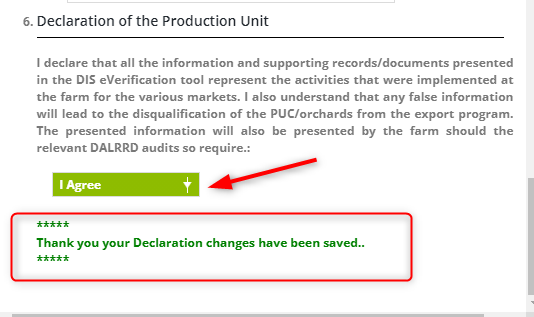
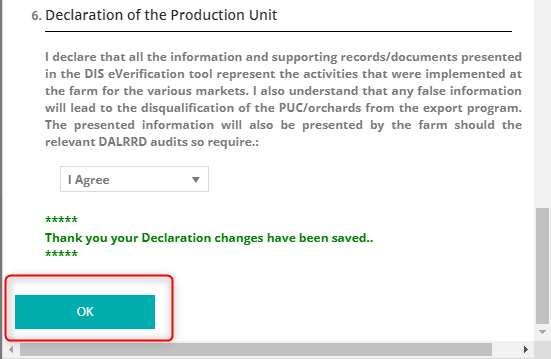
- After the declaration, you should see a message indicating that your changes have been saved.
- Click on “OK” or click on the “X” on the pop modal to return to the dashboard.
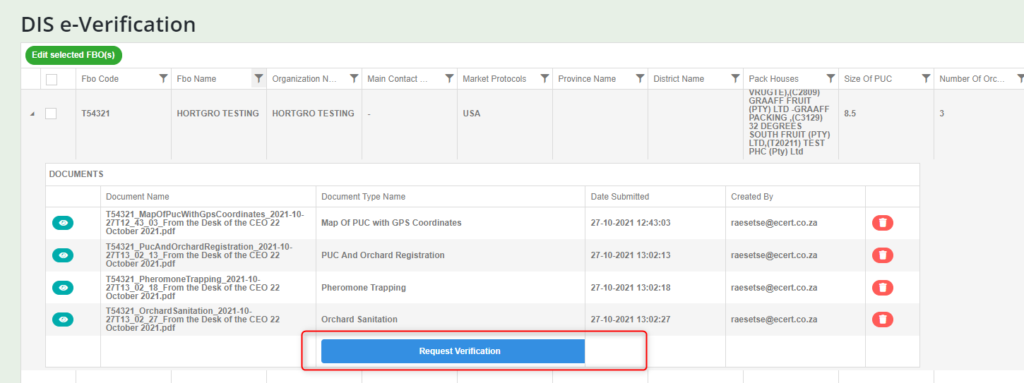
- Once on the dashboard, to review, delete, and /or request verification, click on the dropdown to expand, as shown in Figure 18 below, next to the intended FBO

- All successfully uploaded documentation will show, as shown in Figure 19 below.
- To review the documents, click on the “Eye” icon next to the intended document. As shown in Figure 19 below.
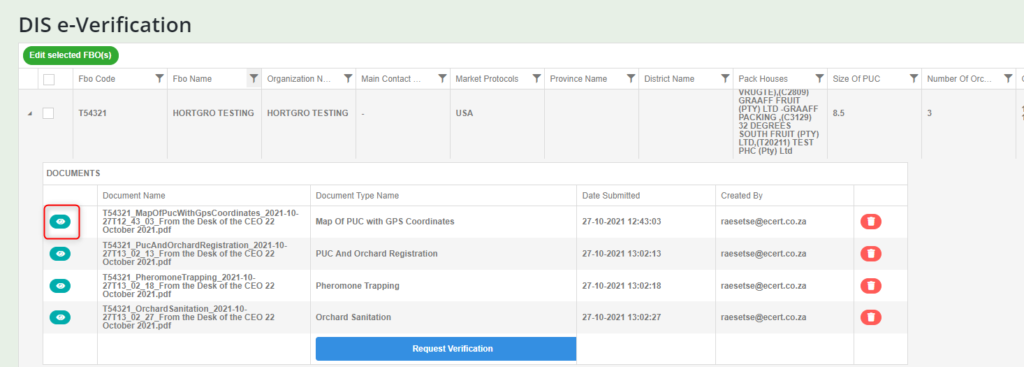
- To delete a document, click on the “Dustbin” icon, as shown in Figure 20 below
- Click on Request Verification once you are happy with all the information completed.
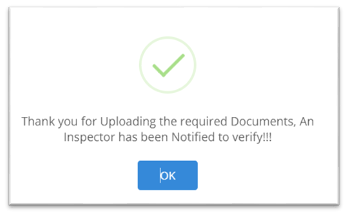
- You will receive a pop-up message stating that an Inspector has been notified to verify your PUC. As shown in Figure 21 below.
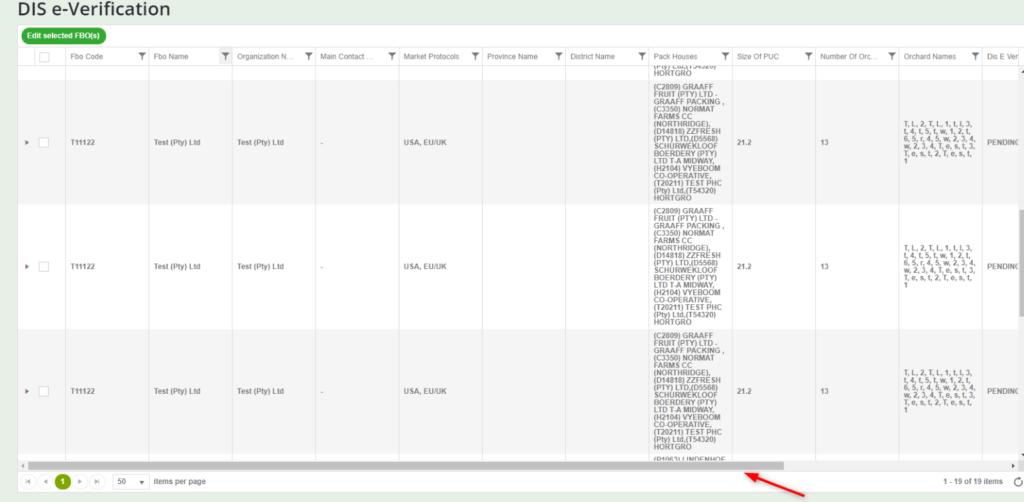
- To view the status of the verification request, use the provided dashboard scroll bar to move to the far right of the dashboard as shown in Figure 22 below.
- The verification status of each PUC will show under the heading “DIS E Verify Status” as displayed in Figure 23 below.
The Verification status are as follows:
- Additional Supporting Documentation Required – This will show if the submission is incomplete and more documentation is required by DIS
- Approved, Awaiting update by Plant Health – This will show when the verification has been approved by DIS
- Non-Complaint – Shows if the submission has been found to be non-compliant
- Pending – This is the default status and no eVerification has been requested
- Verification Requested – This will show after verification has been requested but the inspector has not reviewed the request yet.
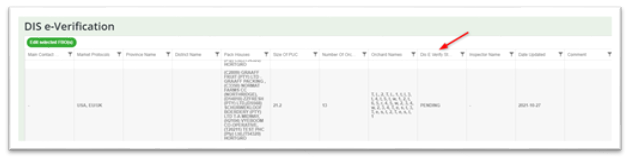
Please note: You can use the grid to also view the name of the inspector who reviewed the Verification Request as well as the Inspector’s comments.