Purpose #
This document provides instructions on:
How to utilize the Pomegranate False Codling Moth Risk Management System (FMS) on the PhytClean platform.
In order to use this guide, the user must be registered on Phytclean.
- If you are not already registered as a user, then go to the PhytClean Website and register. Refer to the Register as a new User Guide (PhytClean) if you need assistance.
- If you have forgotten your password or want to reset it, click on “Forgot Password”. Follow the instructions that follow.
Support Contact Details #
Hortgro #
Contact Person: Andriette de Jager
Telephone Number: (021) 870 2900
Email: andriette@hortgro.co.za
Linking to an FBO #
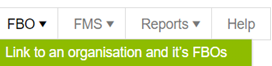
To be able to change the records of an FBO (PUC) users need to be linked to that FBO. To link yourself to the FBO you will go to:
- FBO
- Select Link to an organisation and it’s FBOs
- Type in the FBO you want to link yourself to
- Then press Save
Capturing Pomegranate FMS data #
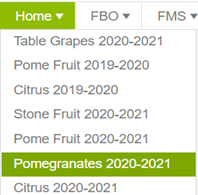
The Pomegranate FMS control point can be found under the Pomegranates 2020-2021 control point on PhytClean. To find this go to:
- Home
- Select Pomegranates 2020-2021
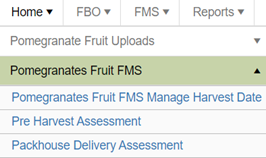
- Select Pomegranates Fruit FMS

- Once selected Pomegranates Control points will appear in the list.
Capturing Pomegranates Fruit FMS Manage Harvest Date #
- Select Pomegranates Fruit FMS Manage Harvest Date
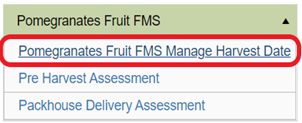
- A grid will appear and allow the user to select a specific PUC and the orchards you have permission to update.
- Type in the PUC and press Get Result button.

- Select the orchard by ticking the block and then press the Edit button.
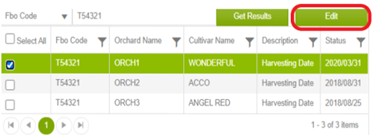

- A window will pop up. On the pop-up window please use the date picker that is on the RHS to change the date.
- Then press Submit.
Capturing Pre Harvest Assessment #
Please Note:
- Only orchards that are within 10 days of harvest will appear in the list of orchards.
- If you want to capture the results because you are about to harvest that orchard, then you will need to change the harvest date.
- Every night the system calculates which orchards are within 10 days from harvest and then changes the status which allows them to be selected so that the results of the assessment can be captured.
- Once the data has been captured for an orchard then that orchard no longer appears in the list. This is to prevent overwriting the pre-harvest assessment data.
- Select Pre Harvest Assessment.

- Type in PUC and Click on Get Results.

- Select the orchard by ticking the block and then press the Edit button.

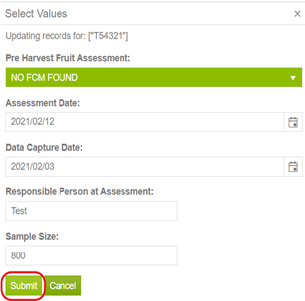
- In the pop-up window that will appear, insert the relevant details for the orchard.
NOTE: Select “NO LIVE FCM” if the orchards passed the assessment under Pre-harvest Fruit Assessment. If live FCM was found select “LIVE FCM FOUND” under Pre-harvest Fruit Assessment.

- Capture details and click Submit.

Capturing Packhouse Delivery Assessment #
- Select Packhouse Delivery Assessment.
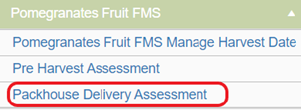
- Type in PUC and Click on Get Results.

- Select the orchard by ticking the block and then press the Edit button.

- In the pop-up window that will appear, insert the relevant details for the orchard.
Please note:
Select “NO LIVE FCM” if the orchard delivery passed the assessment under Packhouse Delivery Assessment. If live FCM was found select “LIVE FCM FOUND” at Packhouse Delivery Assessment.
You will be effectively over-writing the data each day that harvesting takes place. The system stores the history of the assessments but only the live (latest) assessment results are shown.
- Fill in details and click Submit.

- A pop-up message will appear to confirm if you want to continue with the changes.

Viewing Orchard status using Dynamic Report #
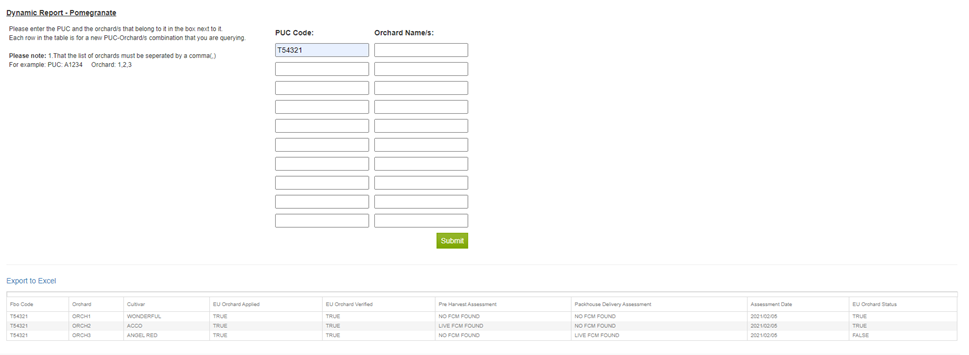
The Dynamic report can be used to view the FMS control points and EU status. The Dynamic report is live and reflects the current data in the PhytClean database.
Go to:
- Reports.
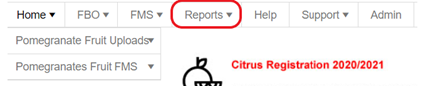
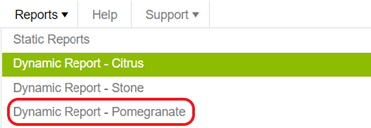
- Select Dynamic Report-Pomegranate.
- Type in the PUC-orchard/s combination you want to see the statuses for. Then click Submit.